








FS Reloading Blogs
Administration Help
The Xcart Admin Area “Administration” drop-down menu has grown as we've added tools to provide capabilites and functions not provided by X-Cart. This has resulted in a cluttered menu that is difficult to navigate. Therefore, to streamline the menu and make it more intuitive for administrators, we reorganized our custom tools in to eight functional groups as shown in the screen capture below.
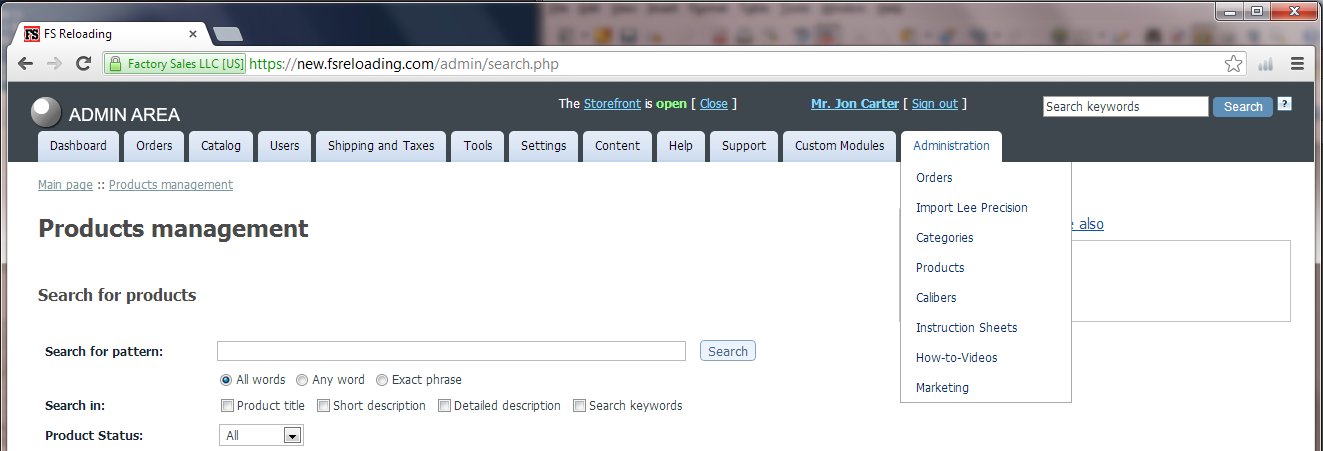
Xcart admin area screen capture showing the new Administration drop-down menu
The various tools available from each menu item are shown in the bulleted list below. Descriptions of each tool are included on each administration menu item page. For example; the description for "Back Order Status" on "Products" page is:
Update the backorder status for products and set the backorder message that will be displayed. This can be done for all products in the database by checking the "Update all products" check box. Leave the box unchecked to update new products only.
NOTE: This help page will only be updated to reflect major changes in the Administration menu tools. Please refer to the live Administration menu for the most current information.
- Orders
- Download Orders
- Order Emails
- Payment Error Codes
- Import Lee Precision
- Upload files
- Download files
- Import Lee Precision Prices
- Parts Category Structure
- Import FS prices
- Import Weights
- Zero prices
- Categories
- Map Products
- Assign products to categories
- Modify Category Descriptions
- Verify Category Descriptions
- Products
- Update Product Names
- Modify Product Descriptions
- Missing Product Descriptions
- Update SEO & Help Icons
- Missing Product Prictures
- Set FS Prices
- Backorder Status
- UPC codes
- Maintenance
- Xcarts cleanup
- Calibers
- Assign calibers to products
- Update Caliber Order
- Update Caliber Names
- Instruction Sheets
- How-To-Videos
- Marketing
